BarClock / Guide
Make yourself
at home.
Install the tool, choose your clock and make room for the countdown.
Explore BarClock ↗Install BarClock, choose a clock, then make room for the countdown. This guide covers the essentials for NinjaTrader 8 on Windows.
01. Import the download
- Download the BarClock NinjaScript Add-On ZIP using the personal link in your order email.
- Keep the ZIP intact. In NinjaTrader’s Control Center, choose Tools → Import → NinjaScript Add-On.
- Select the downloaded ZIP and complete NinjaTrader’s import prompts.
If NinjaTrader reports an import or licence problem, contact support@fiveoriginals.com with the message and your order email address.
02. Restart NinjaTrader
RESTART NINJATRADER AFTER IMPORT
After importing the ZIP, close NinjaTrader completely and reopen it before adding BarClock to your chart.
03. Add BarClock to a chart
- Open a chart in NinjaTrader 8 and open its Indicators window.
- Find BarClock in the FiveOriginals category and add it to the chart.
- Apply the settings. Your clock and countdown can be configured independently.
Your paid licence
We activate your paid licence using your NinjaTrader Machine ID. If you did not include it with your order, find it under Help → About in NinjaTrader’s Control Center and reply to your order email with the ID.
04. Choose your clock
Select Pana, White Digit, Zero Mercy or Two Blue Birds in BarClock’s settings. Adjust the clock size, then drag the clock to where you want it.
Choose whether the clock stays fixed to the screen or fixed to the chart. You can also hide the clock and use only the countdown.
05. Set the countdown
Choose a pie, digits, digits inside the pie, or digits beside the pie. Adjust its size, colors, opacity and distance from the live bar. Price-follow smoothing is also configurable.
Minute and second charts: time remaining.
Tick charts: ticks remaining.
Other chart types: available chart progress, without a numerical time estimate.
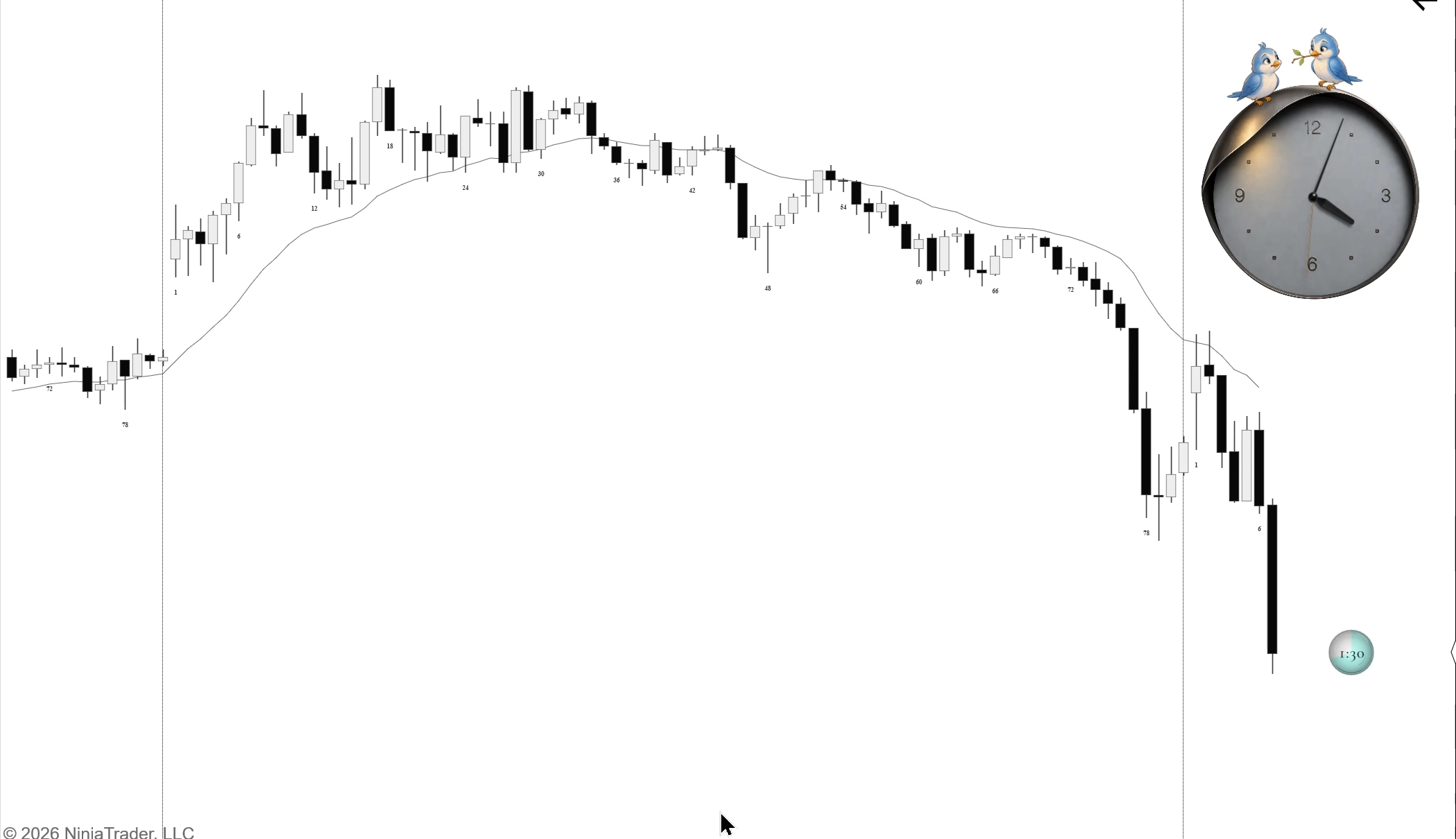
Example chart also contains other indicators, sold separately.
Your settings, in one place
Open BarClock in the chart’s Indicators window to change the clock and countdown options.
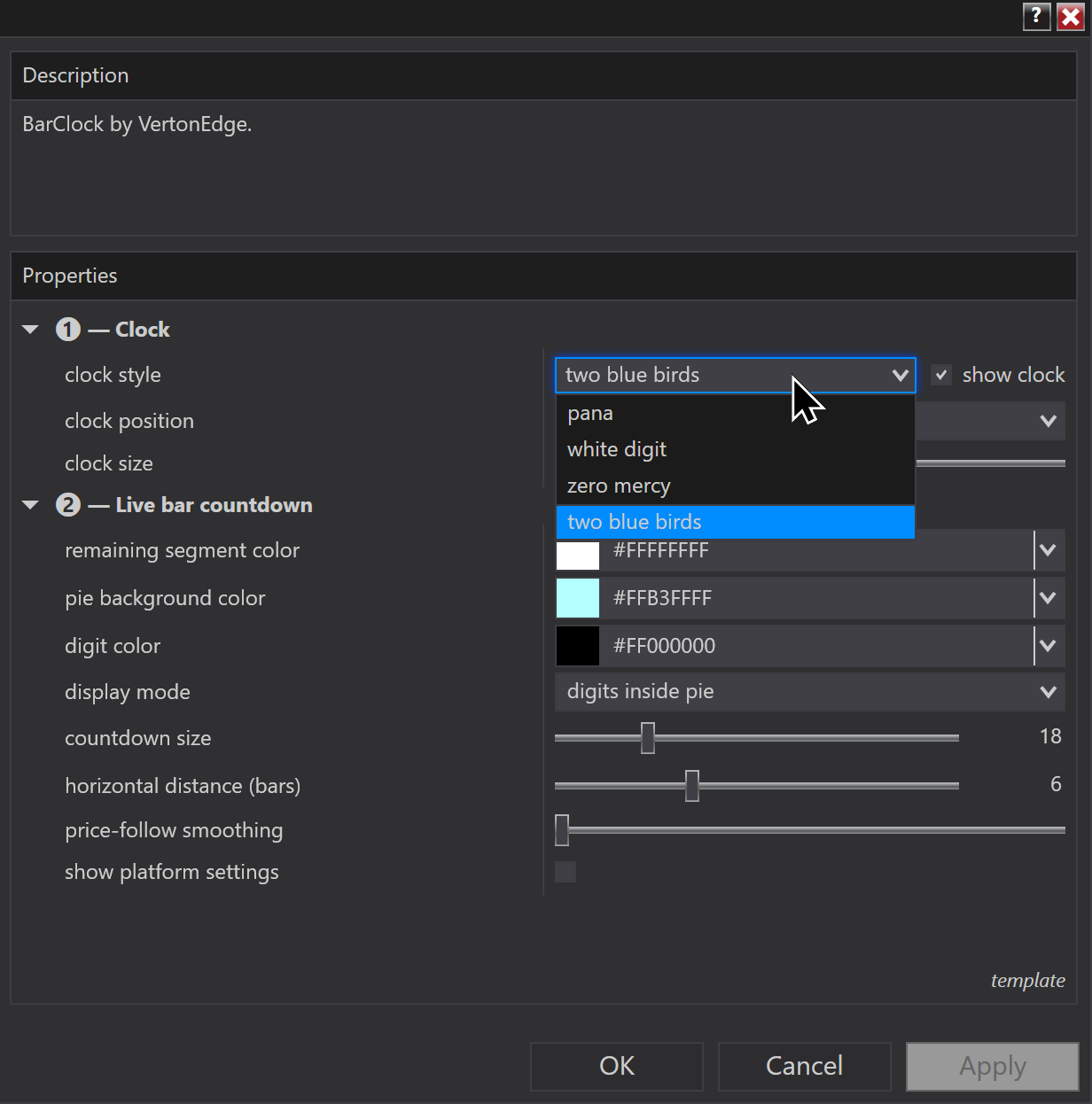
Open the settings image at full size ↗
Need a hand?
Reply to your order email or contact support@fiveoriginals.com. Include your order email address and the exact message you see, if any.